Extremely reliable for wireless CarPlay on the Africa Twin once connected. Startup is a bit slow, but it's totally liveable. A rock-solid, drop-free upgrade that works great—highly recommended!
J ai écumé les sites pour trouver LA CLE , je n aivrien trouvé qui fonctionnait aussi bien sur ma NT1100 de 2026. Elle rentre bien dans le compartiment qui se ferme pour la garder étanche. Mode opératoire d installation est clair et le fonctionnement est top . Je suis ravi. J ai même donné les coordonnées à mon concessionnaire. En plus c est un produit européen c est vraiment bien .Merci !
After trying other devices and wasting money on them, I decided to give this one a try as a last resort.
I have to say, it works just as expected!
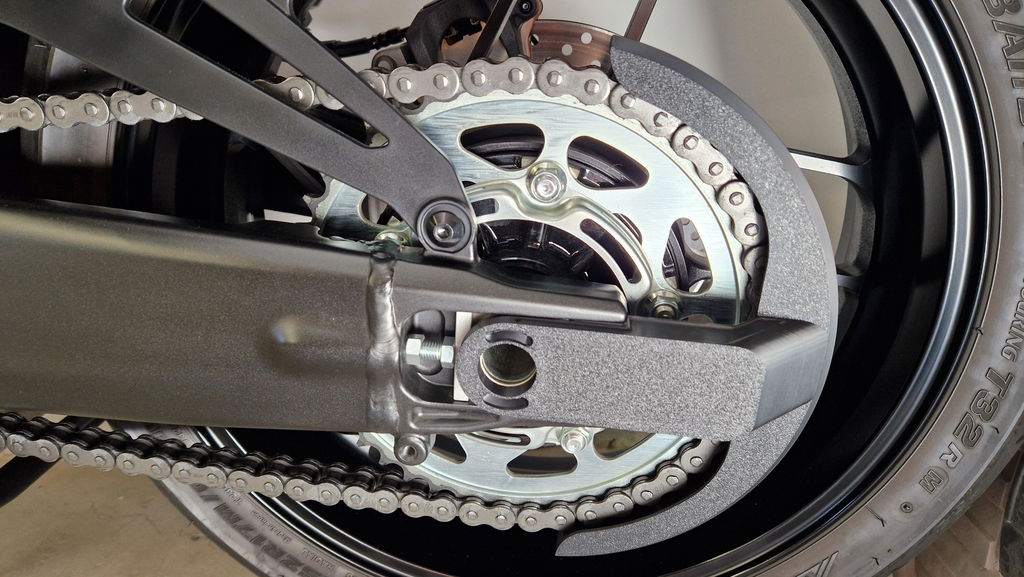
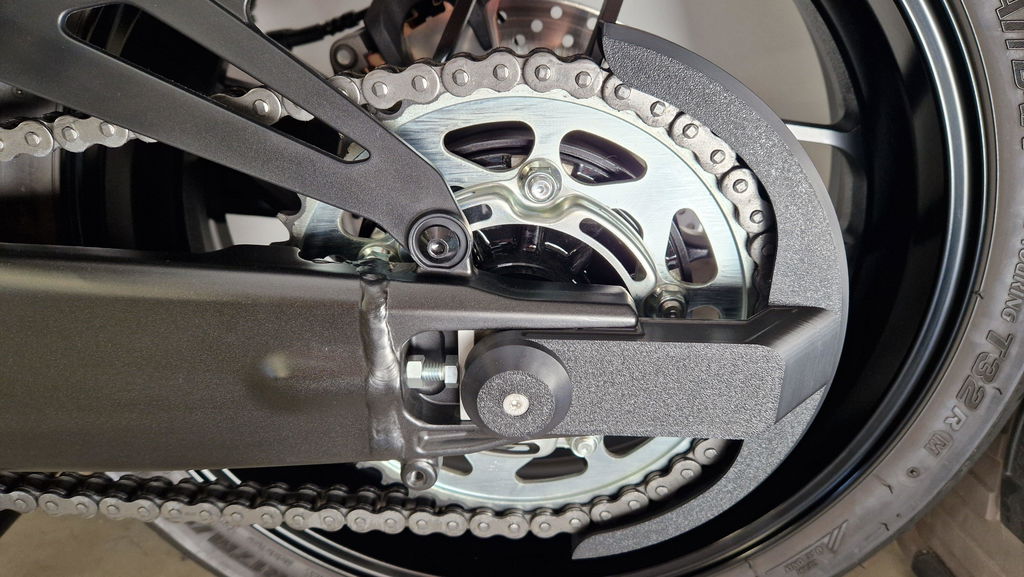
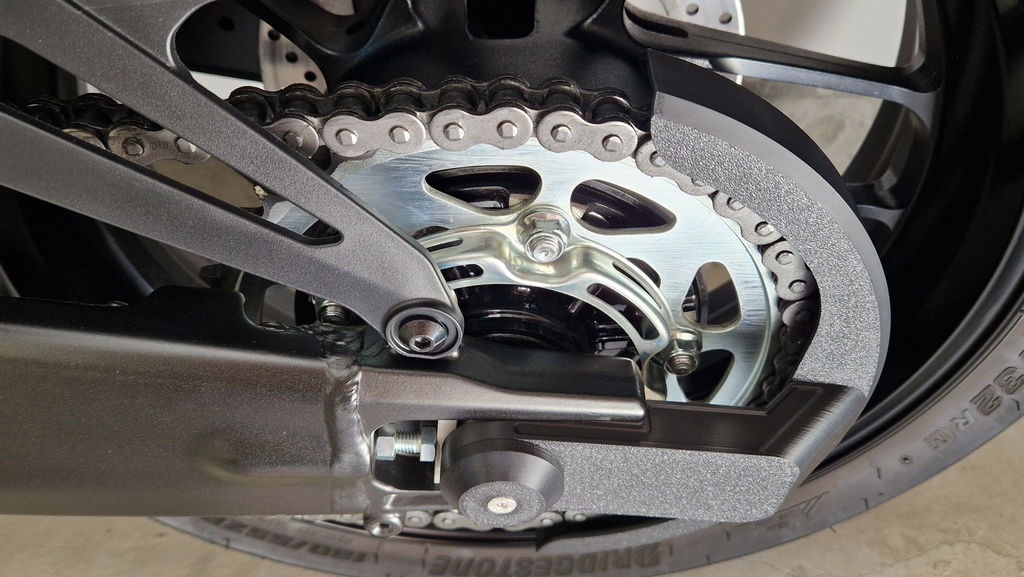
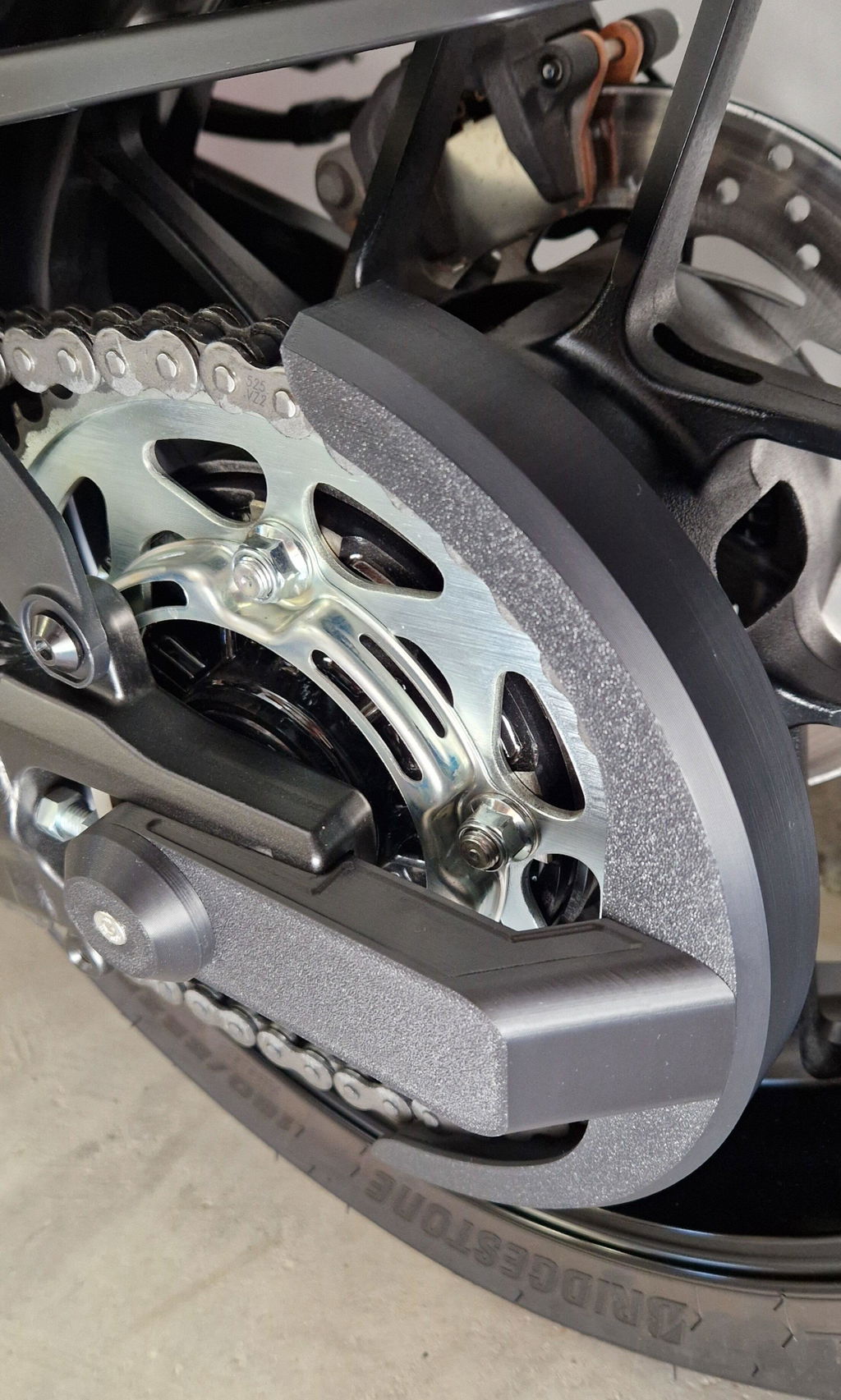
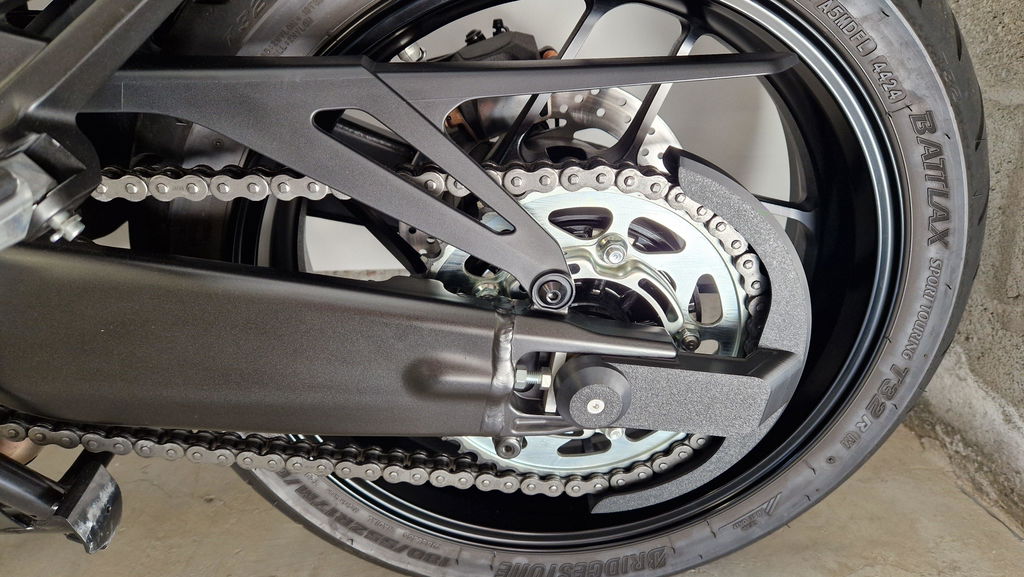
J'utilise cette protection de chaîne depuis plus d'un an sur mon Tracer 9 GT 2025, c'est vraiment très efficace. La nouvelle fixation a été légèrement modifiée pour améliorer sa rigidité, et même si on ne voit pas de différence le plastique est aussi plus rigide. La fixation centrale a également été légèrement modifiée et elle est plus épaisse. Cette protection de chaîne est très efficace contre les projections de graisse sur la roue arrière et le dessous du top case (plus de graisse). La qualité de fabrication est incroyable, les ajustements sont parfaits entre les éléments, il y a un souci des détails esthétiques, et c'est facile à installer et à enlever : une vis BTR.
La fixation s’insère dans le bras oscillant de mon Tracer 9 GT 2025 avec beaucoup de précision (il faut bien l’aligner et pousser d’arrière en avant), l’ajustage est parfait car il n’y a aucun jeu une fois en place
Je recommande vraiment ce produit, surtout lorsqu’on sait qu’il y un SAV de qualité : réponse dans la journée, bravo !